
Connecting to the Kroger Portal
Follow these steps to connect Serve with the Kroger Portal
Log in to the Kroger Partner Pass portal and select Users.
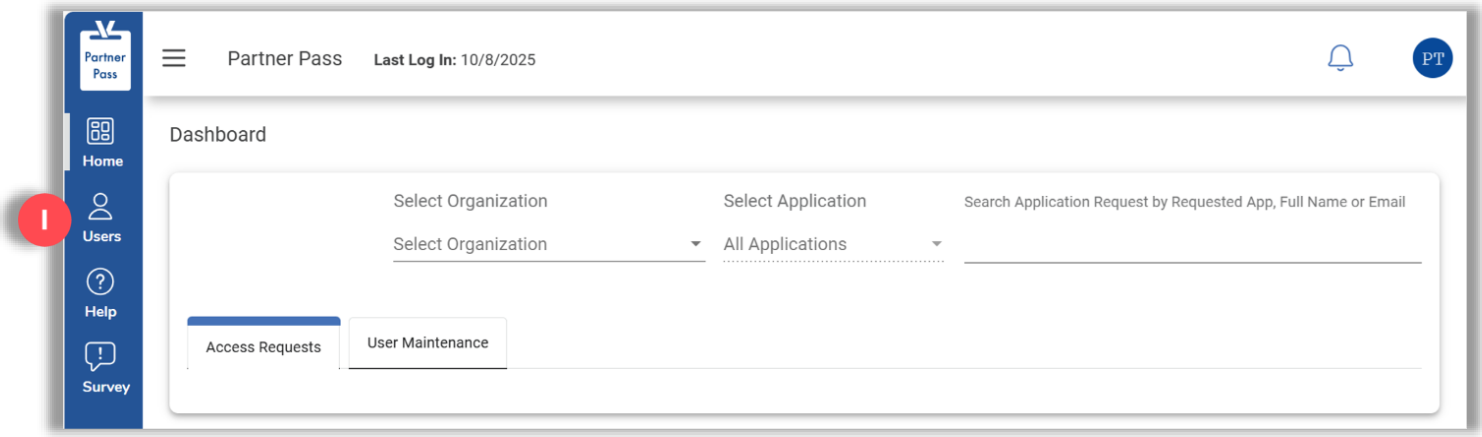
Select your organization, then + Add User.
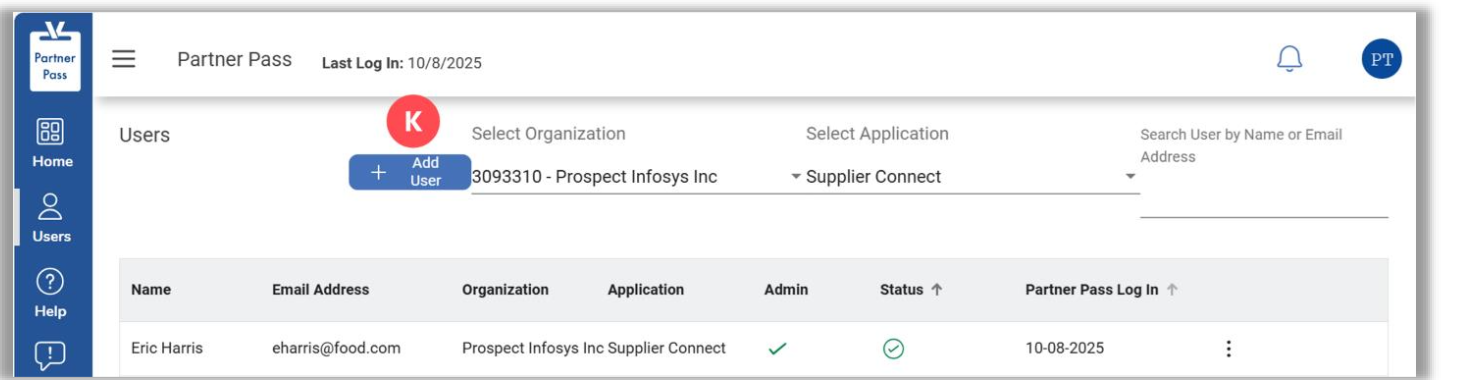
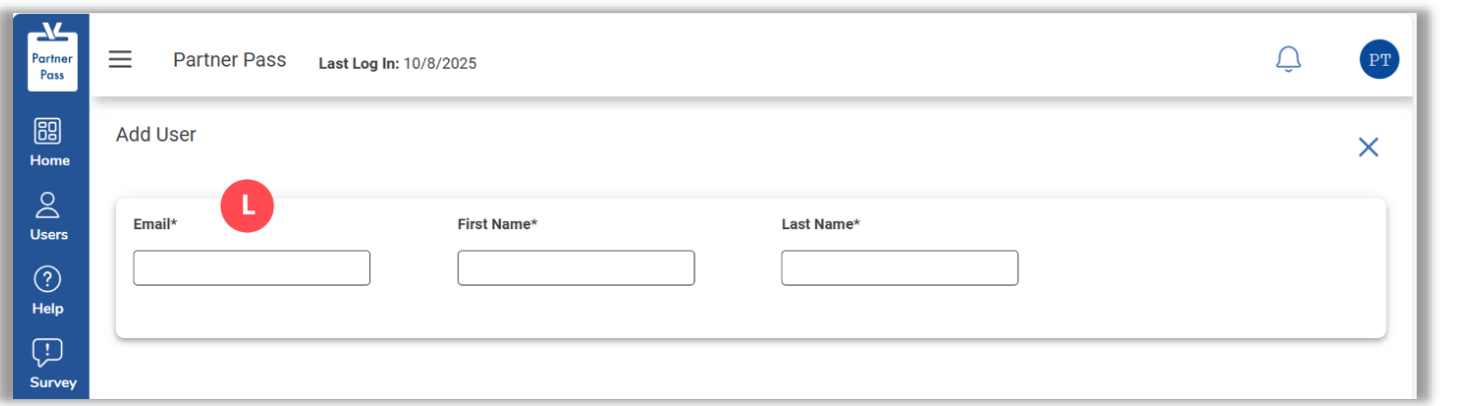
Fill out the required information:
- Email: kroger@getserve.ai
- First Name: Serve
- Last Name: Integration
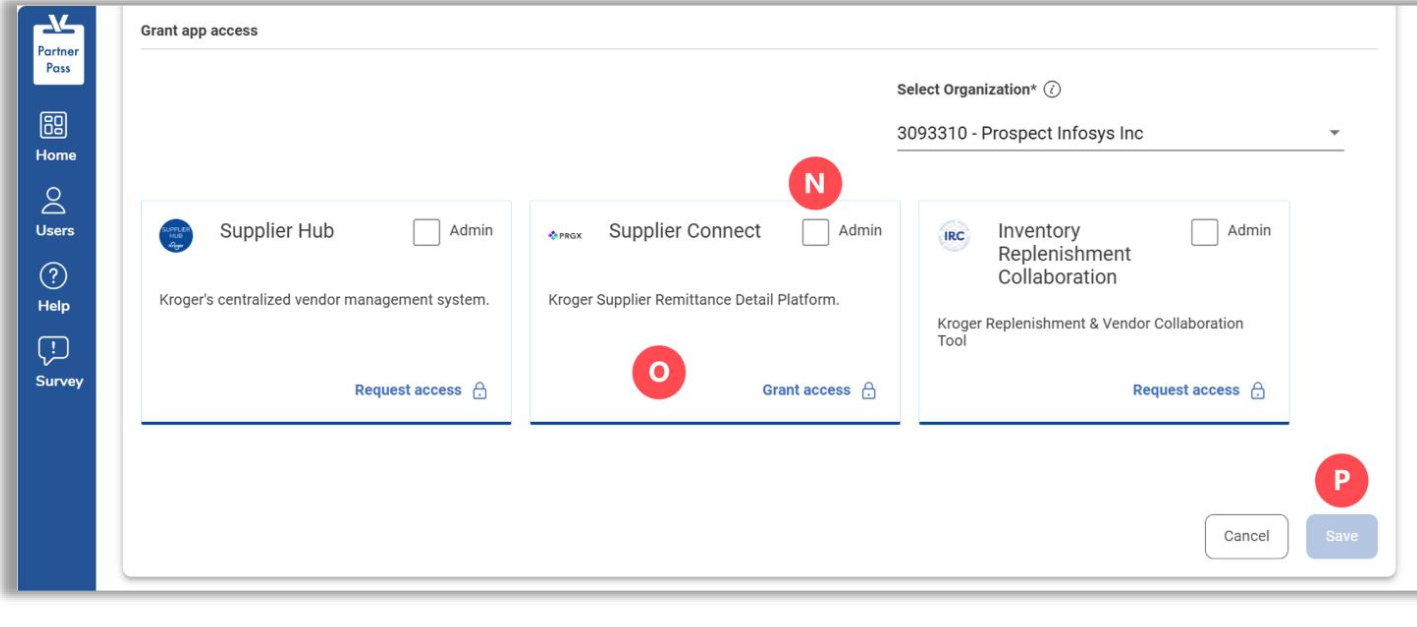
Select your organization, then select the Supplier Connect tile. Leave Admin unchecked.
Select Save.
Notify the Serve team.
Once we confirm the Serve user is active, give it the Supplier Analyst role so Serve can submit disputes:
- Open Supplier Connect from your Partner Pass dashboard.
- Select the gear icon on the left, then System Settings.
- Find kroger@getserve.ai, scroll right to the Action column and select ⋯ → Edit User.
- Change the role to Supplier Analyst and select Save.
Serve then starts syncing your Kroger data. If you have any questions, reach out to the Serve team.